
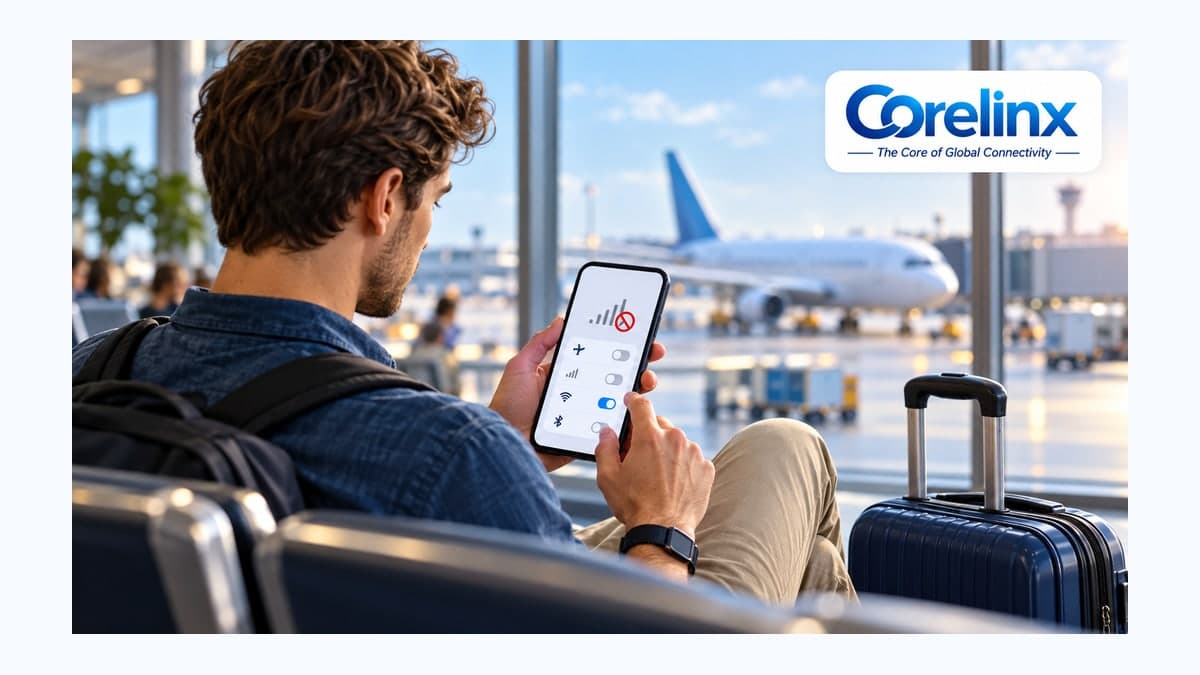
This guide covers what happens after arrival, when the eSIM profile is already installed but the phone has no signal or no internet. If you are stuck earlier, while scanning the QR code or installing the profile, start with how to activate a travel eSIM before you fly.
What do "No Service", "Searching" and SOS actually mean?
Apple's support documentation explains that No Service or Searching in the status bar means the device is not connected to a cellular network. SOS means the phone can place emergency calls through an available network but is not registered for regular service. Both are different from "full bars but no internet", which is usually a data-settings problem rather than a network problem.
| What you see | What it usually means | Where to look first |
|---|---|---|
| No Service / Searching | The eSIM line has not registered on any network | Line enabled, data roaming, airplane mode, restart, network selection |
| SOS / SOS only | A network is in range but has not accepted the eSIM for normal service | Data roaming, automatic network selection, plan validity, destination coverage |
| Signal bars, no internet | Registered, but data is not travelling over the eSIM line | Mobile data line, data roaming, APN, VPN or Wi-Fi interference |
| Very slow data | Connected, but weak signal or a restrictive network mode | Move location, automatic network type, remaining data |
Apple documents the SOS/SOS only status with emergency calls through other carrier networks in Australia, Canada and the United States. The display and availability vary by device and country; it is not a guarantee that every travel eSIM can make emergency calls everywhere. See Apple’s SOS and No Service guidance. On iPhone, APN settings are visible or editable only if the carrier allows it; if the menu is absent, contact support rather than forcing a change.
The five-minute checklist after landing
Work through these steps in order and test after each one. Turn off airport Wi-Fi first, as Google's Pixel help suggests, so you are really testing the cellular connection.
- Turn the travel eSIM line on. On iPhone, go to Settings > Cellular (Mobile Data in some regions), tap the travel line and make sure "Turn On This Line" is enabled. On Android, open the SIM or mobile network settings and enable the eSIM profile. An installed profile can still be switched off.
- Make it your mobile data line. On iPhone: Settings > Cellular > Cellular Data, then pick the travel line. On Android, choose the travel SIM for mobile data. If you want to avoid charges from your home carrier, turn off any option that lets data switch automatically to your primary SIM.
- Turn on data roaming for the travel line only. Apple notes that data roaming needs to be on when you travel internationally. Travel eSIMs typically connect through partner networks in the destination, so the phone treats the connection as roaming. Leave roaming off on your home line.
- Use airplane mode for at least 15 seconds, then switch it off. This forces the phone to search for networks again; 15 seconds is the minimum Apple recommends.
- Restart the phone. Power it off completely and back on. Many phones register on a new country's network only after a full restart.
Still showing No Service? Continue below, and do not delete the eSIM profile.
Should you pick a network manually?
Keep network selection on automatic first. Manual selection helps only when the phone keeps trying a network that does not accept your eSIM, or when your plan instructions or support team name a specific network.
On iPhone
Go to Settings > Cellular, choose the travel line, then Network Selection. Turn off Automatic, wait for the list to load and pick the suggested network. If that does not help, switch back to Automatic.
On Android
Google's Pixel help describes a Network setting that lets you choose an operator from the available networks, usually under Settings > Network & internet > SIMs, then the eSIM profile. On Samsung and other brands, look for "Network operators" inside the mobile network settings. Menu names vary by Android version.
After a manual choice, wait a minute or two and repeat the 15-second airplane mode toggle. If the network rejects you, return to Automatic so the phone is not stuck on the wrong network when you move between cities.
Signal but no internet: what to check
- The wrong data line. On a dual-SIM phone you may see two sets of bars while data still tries to run over your home line, where roaming is off. Our guide to using a travel eSIM alongside your primary SIM walks through the full setup.
- Roaming on the wrong line. Data roaming must be enabled on the travel eSIM line, not only on your home SIM.
- VPN or Private DNS. Temporarily disable VPNs, data-saver apps or a private DNS setting to test, then turn them back on once data works.
- Network type. Google suggests checking the preferred network type for the SIM. An automatic mode (for example 5G/4G/3G auto) lets the phone fall back to whatever is available.
- APN. Some plans list a specific APN in their installation instructions. Apple advises against editing APN settings unless your carrier tells you to, because wrong values can cut off mobile data. On iPhone the APN is under Settings > Cellular > Cellular Data Network, which also has a Reset Settings option.
Causes that are not your phone settings
- Coverage. A single-country plan works only in that country, and a regional plan only in the countries on its coverage list. Leaving the airport during a layover in a third country is not automatically covered.
- Validity and data. If the eSIM worked yesterday and stopped today, the data allowance or validity period may have run out. Check your usage on your order page.
- Location. Arrival halls, lifts, basements and thick-walled buildings can weaken signal. Move near a window or outside the terminal.
- Carrier lock. A carrier-locked phone may never register on a travel eSIM. Unlocking rules depend on the carrier that sold the phone, so confirm this before your next trip.
- Carrier settings update. On iPhone, Apple suggests opening Settings > General > About; if a carrier settings update is available, you will be offered to install it.
Last resort: reset network settings, not the eSIM
If nothing else works, a network settings reset is a reasonable next step. It also erases saved Wi-Fi passwords, VPN settings and previously used APN values, so note important Wi-Fi passwords first.
What we do not recommend is deleting the eSIM profile. Many eSIM QR codes can be installed only once, so a deleted profile may not be reinstallable. Contact Corelinx support first and have ready:
- your phone model and iOS/Android version,
- your current country and city,
- the exact symptom (No Service, SOS, or bars without data),
- screenshots of the eSIM line and data roaming settings,
- your order number.
A pre-flight routine that prevents most of this
- Confirm your phone supports eSIM and is not carrier-locked.
- Install the eSIM at home on stable Wi-Fi.
- Label your lines clearly, for example "Travel" and "Home".
- Save the plan instructions, including any APN, as a screenshot you can read offline.
- Download offline maps and keep your booking and hotel address on the phone.
- After landing: Wi-Fi off, travel line on, travel line for data, roaming on for the travel line.
Frequently asked questions
Why does my eSIM say No Service when it looked fine at home?
Travel eSIMs usually connect only once you are in a country covered by the plan, so at home the profile can appear installed with no signal. After arrival, run the five-minute checklist above.
Will turning on data roaming for the travel eSIM trigger charges from my home carrier?
Data roaming is set per line. Enabling it on the travel eSIM does not enable it on your home SIM. Keep roaming and automatic data switching off on your home line.
How long should I wait before contacting support?
After the five basic steps, give it a few minutes and try another spot. If you still see No Service, contact support with the details listed above rather than changing more settings at random.
Is it safe to change the APN myself?
Only change it if your plan instructions or the support team give you the value. Apple warns that incorrect APN settings can stop mobile data; use Reset Settings in the Cellular Data Network menu if unsure.
Can I delete and reinstall the eSIM to fix it?
It is better not to. eSIM QR codes are often single-use, so a deleted profile may not come back. Ask support first.
Stay connected
Choose a plan that covers every country on your route, including any layover country where you plan to leave the airport. Browse all Corelinx eSIM plans or go straight to a popular destination such as Thailand eSIM plans. Each plan page lists the data allowance, validity and covered countries.
Official sources checked on 18 October 2026: Apple – If you see SOS, No Service, or Searching; Apple – View and edit your APN; Google Pixel – Fix mobile connectivity issues; Google Pixel – Connect to mobile networks. Menu names vary by model and operating system version.
Cover image: AI-generated editorial illustration, not documentation of a particular airport or a device test.